

STEP-BY-STEP TRAINING
Training Used By






















Introduction to the training
Introduction to the training
OPTION 1
The Complete Curriculum
The Complete Curriculum
This is our most comprehensive training program, taught by professional Hollywood editors.

500+ Step-By-Step Lessons
500+ Step-By-Step Lessons
A full education for all types of editors & projects
- Beginner to advanced teaching— from basic software tutorials to professional editing techniques
- Premium music & sound libraries —work with professional quality audio to create the perfect mix
- Personal coaching & feedback — includes detailed cut reviews from professional editors on all course projects
- Covers all topics & genres — film, trailers, promos, music editing, VFX, graphics, sound design…it’s all here

20 Hands-On Practice Projects & Footage
20 Hands-On Practice Projects & Footage
Professionally-shot footage from $150,000+ worth of film shoots
- Real-world projects — from cutting trailers to feature films to building graphics and VFX
- 1,600+ raw footage dailies — shot by talented filmmakers, including Lin Oeding, director of Cobra Kai & Reacher
- Build your reel — with the finished work you create
Tuition $6,499
Tuition $6,499
Or start with the $49 Editing Secrets course.
Or start with the $49 Editing Secrets course.
OPTION 2
The Editing Secrets Course
The Editing Secrets Course
A fast, focused collection of our most powerful creative techniques you can apply to your own work today
Overview
- 14 step-by-step lessons
- 3+ hours of training
- Top creative & technical tips from the Complete Curriculum
- Works with any editing software
What's Inside?
What's Inside?
Editing techniques for all skill levels, project types & editing software
LESSON 1
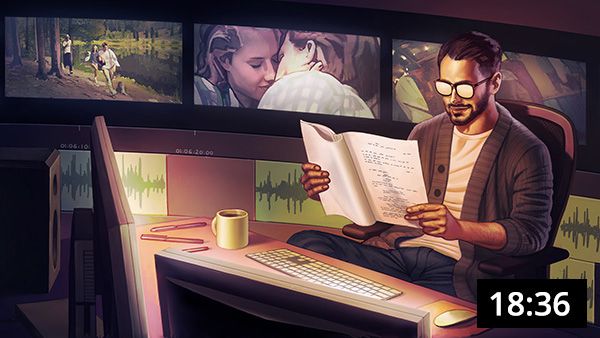
The World of the Creative Editor
The World of the Creative Editor
LESSON 2
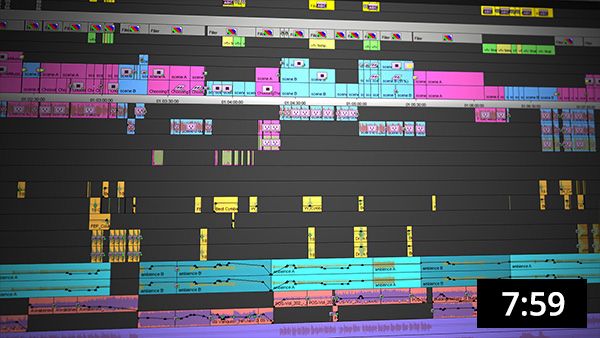
The Pro Editor's Perfect Timeline
The Pro Editor's Perfect Timeline
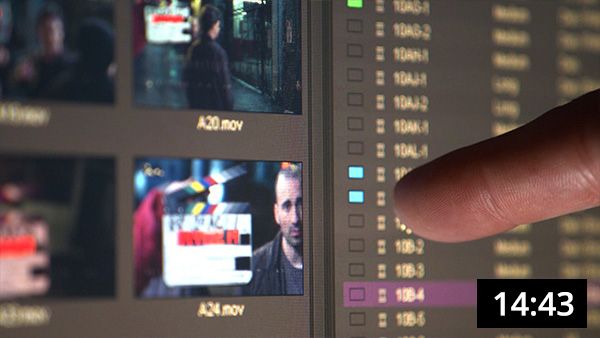
LESSON 3
Core Skills & Techniques to Master
Core Skills & Techniques to Master
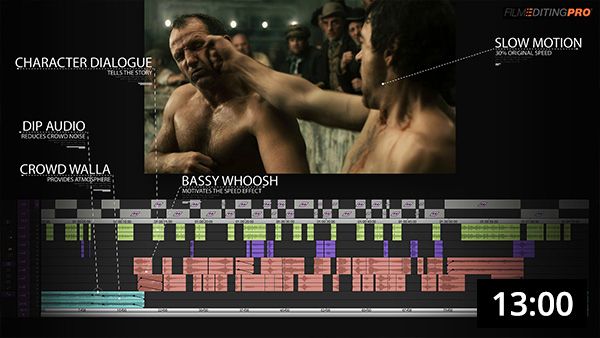
LESSON 4
Deconstructing a Professional Cut
Deconstructing a Professional Cut
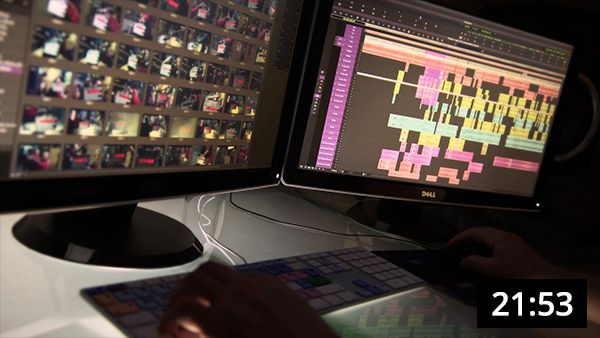
LESSON 5
The Six Stages of Creative Editing
The Six Stages of Creative Editing
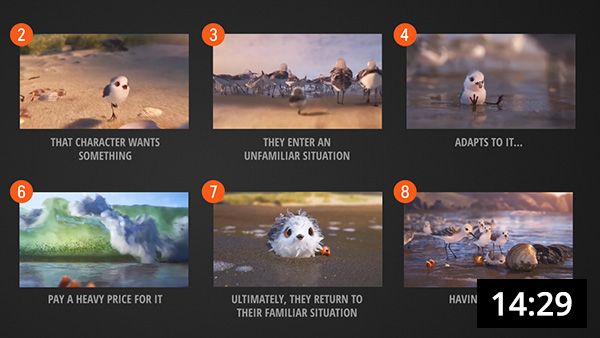
LESSON 6
Cinematic Storytelling for Editors
Cinematic Storytelling for Editors
LESSON 7
Timing & Pacing Your Cuts
Timing & Pacing Your Cuts

LESSON 8
Editing Picture & Sound Creatively
Editing Picture & Sound Creatively
LESSON 9
Trailer & Promo Editing 101
Trailer & Promo Editing 101
LESSON 10
Trailer Music & Sound Design
Trailer Music & Sound Design
LESSON 11
Deconstructing the Trailer Timeline
Deconstructing the Trailer Timeline
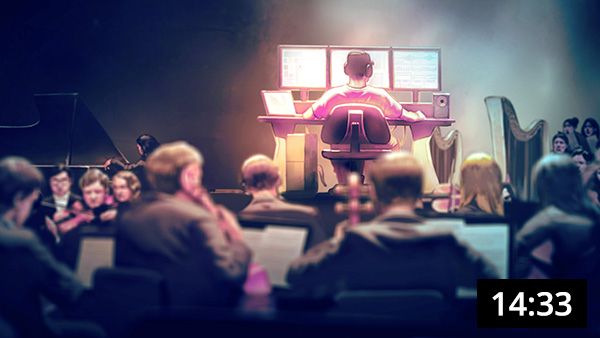
LESSON 12
The Editor as a Composer
The Editor as a Composer

LESSON 13
Scoring Secrets for Editors
Scoring Secrets for Editors
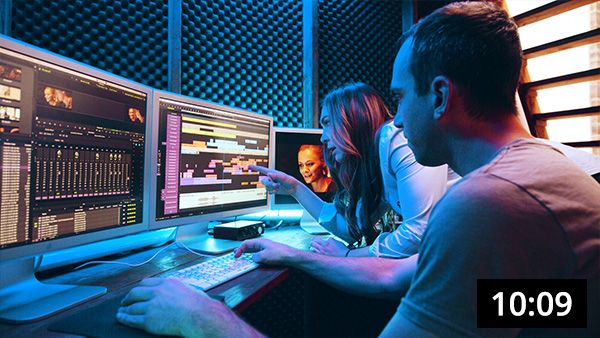
LESSON 14
Creative Music Editing Techniques
Creative Music Editing Techniques
Plus the Pro Editor's Toolkit...
Plus the Pro Editor's Toolkit...
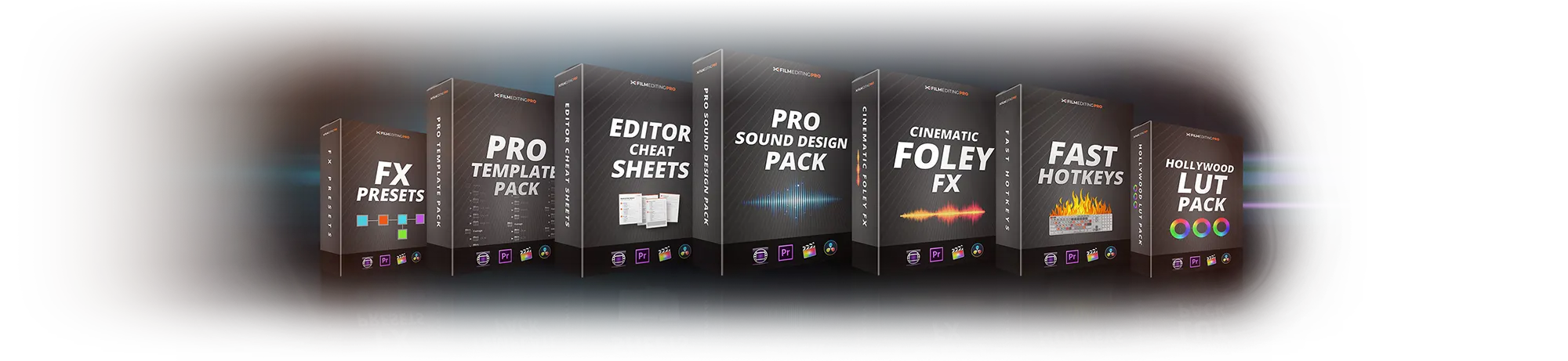
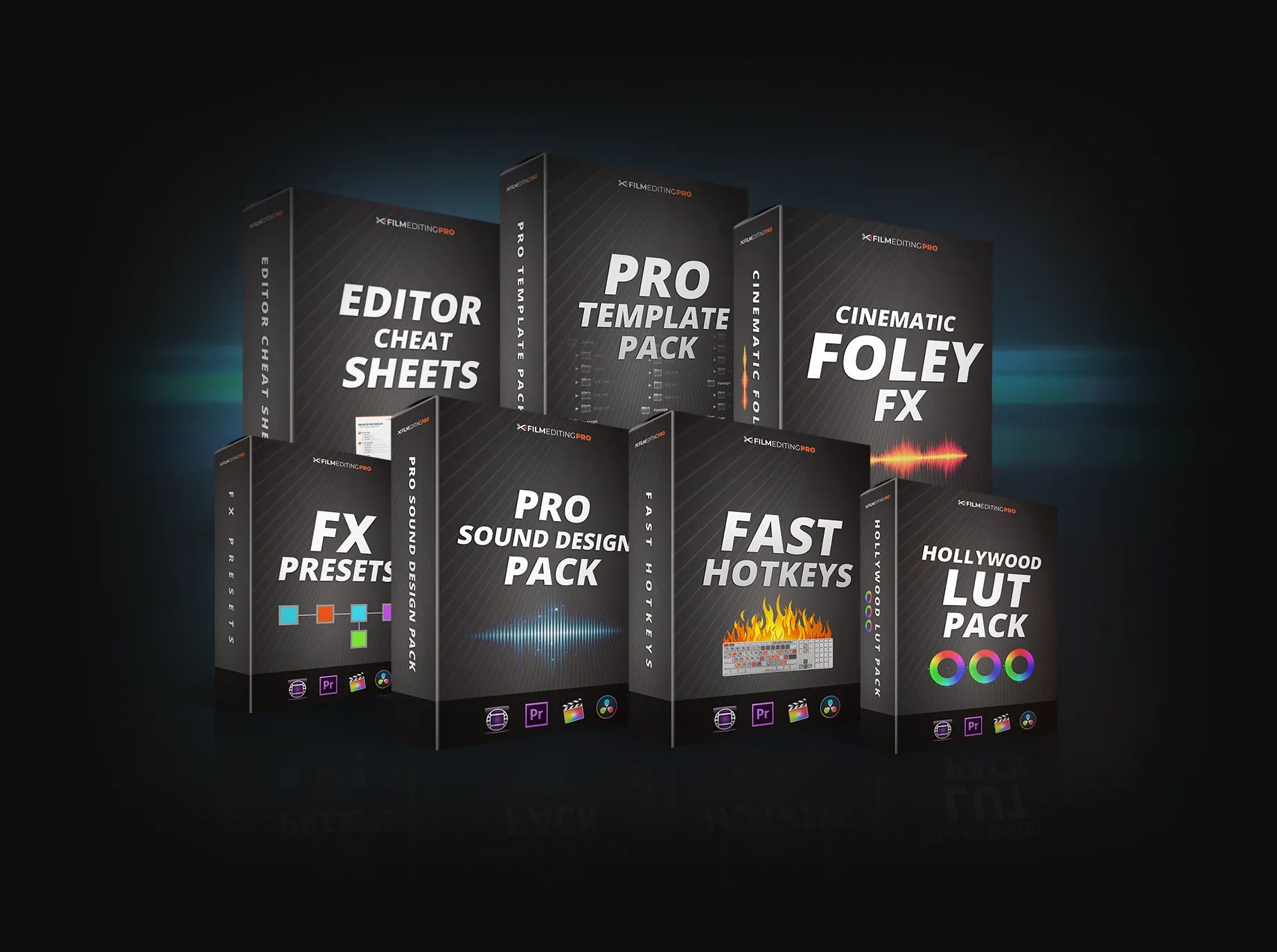
Learn at your own pace. Use any software.


Great courses, amazing materials, and incredible support almost in real time. Highly recommended if you want to learn editing the way it’s done by Hollywood professionals.
Víctor Peceño
FEP STUDENT
Choose your path to becoming a better editor.
Choose your path to becoming a better editor.
MOST POPULAR STARTING POINT
Get Editing Secrets
Get Editing Secrets
A fast, focused collection of our most powerful creative and technical tips
- 14 Step-by-Step Lessons
- 3+ Hours of Training
- 400 Cinematic Foley Effects
- Optimized Keyboard Shortcuts
- Project Templates
- Our Favorite FX Presets
- Easy to Complete in a Weekend
- 30-Day Money-Back Guarantee
New Student Pricing for October
(Regularly $297)
BEST FOR SERIOUS CREATIVES
Get The Complete Art of Editing Curriculum
Get The Complete Art of Editing Curriculum
- 500+ Step-by-Step Lessons
- 100+ Hours of Training
- 20 Hands-On Practice Projects
- Footage, Music & Sound Libraries
- Editing Feedback & Guidance
- Versatile Editor’s Playbook
- The Editor’s Gear Guide
- The Career & Job Guide
- Color Grading Masterclass
- Editing Performance Maximizer
- Partner Discounts & Perks
- 30-Day Money-Back Guarantee
Not sure yet?
Most students start with Editing Secrets.
Most students start with Editing Secrets.
The easiest way to try our curriculum without joining the full program.

The Editing Mastery Guarantee
The Editing Mastery Guarantee
This training is designed to take you from capable... to undeniably skilled.
Follow the training, apply the techniques, and you’ll see a real transformation in the way you approach editing — creatively, technically, and professionally.
If you don’t feel this is the most insightful and practical editing training you’ve ever received, email us at support@filmeditingpro.com within 30 days.
We’ll either work with you to help you succeed — or give you a full refund.
No fine print. No hoops. Just a commitment to real results.
If you don’t feel this is the most insightful and practical editing training you’ve ever received, email us at support@filmeditingpro.com within 30 days.
We’ll either work with you to help you succeed — or give you a full refund.
No fine print. No hoops. Just a commitment to real results.
Some of the best — if not the best — current training available. You won’t be disappointed.
Scott Spiker
FEP STUDENT
Student Reviews
Student Reviews
Real experiences, results, and thoughts from students in 149 countries


About Film Editing Pro
About Film Editing Pro
Film Editing Pro was founded in 2015 to fill a gap in traditional editing education — creating a structured, real-world training system that goes beyond vague theory and simply how to use the software.
The primary focus is on teaching the creative and artistic skills, all supported by a strong foundation of technical knowledge.
Film Editing Pro has trained 30,000+ editors — ranging from independent filmmakers to professionals at studios like Netflix, Warner Bros, HBO, and Disney. Faculty and students at top universities, including Yale, Columbia, and USC, have also trained with Film Editing Pro courses.
The primary focus is on teaching the creative and artistic skills, all supported by a strong foundation of technical knowledge.
Film Editing Pro has trained 30,000+ editors — ranging from independent filmmakers to professionals at studios like Netflix, Warner Bros, HBO, and Disney. Faculty and students at top universities, including Yale, Columbia, and USC, have also trained with Film Editing Pro courses.
Meet the Team
Meet the Team

Chris MacDonald
LEAD TRAINER & FOUNDER
Meet Chris. He started his career in entertainment fresh from college and held various jobs in the industry before working his way up to staff editor at Universal Studios. He then held positions throughout Hollywood, focusing primarily on trailer editing for studios like Sony, Disney, Warner Bros and more. With 15+ years editing experience, he’ll be the main voice and guide throughout your training at Film Editing Pro.

Brian Levin
SENIOR TRAINER
Meet Brian. He has over a decade of experience with several award-winning films whose recent clients include Amazon Prime Video, Red Bull and Sesame Street, just to name a few. His resume is varied having worked on narrative feature-length films, documentaries, music videos and brand films. Brian primarily focuses on Adobe Premiere and casually tolerates Avid, but regardless of the tool he absolutely loves editing.

Leon Barnard
SENIOR TRAINER
Meet Leon. He’s a passionate filmmaker with experience in directing, cinematography and editing. You might notice his British accent! Leon comes from London where he works as an instructor for production companies like the BBC, Amazon and ITV, providing training on programs such as Davinci Resolve, Adobe Premiere Pro and Adobe After Effects. Leon has a particular love for teaching editing but he’ll happily talk about any aspect of filmmaking.
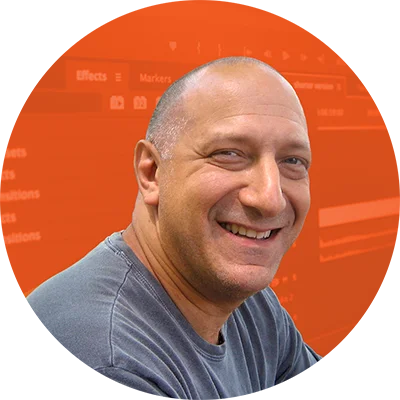
Rich Kronenberg
SENIOR TRAINER
Meet Richard. He is an Avid Certified Instructor and Emmy award-winning editor obsessed with the craft and mechanics of storytelling. With over twenty years of experience, he’s edited reality, documentary, corporate, news, promo, cooking, travel, and sports content for ABC, CBS, MSNBC, MTV, ESPN, FOX, CW, Bravo, A&E among countless others. Richard also cut field packages for “The Rachael Ray Show” from seasons 8 – 14.
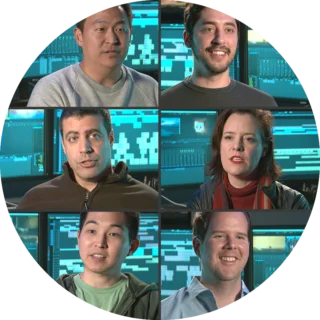
Contributing Editors
ROTATING TEAM OF SPECIALISTS
For every Film Editing Pro course, we'll consult and work with a selection of the best editors in the genre, style or technique that we’re teaching to make sure all bases are covered. Then, we build the lessons and pass along that knowledge on to you. Our rotating team of contributing editors has 120+ years of combined editing experience in film, TV and trailers.
Our trainers have worked for...
Our trainers have worked for...
THESE MAJOR STUDIOS

& ON THESE MAJOR FILMS

The Same Training Used By 30,000+ Students & 200+ Companies
The Same Training Used By 30,000+ Students & 200+ Companies
ABC
Aljazeera Media Network
AMC
Aspect
AV Squad
BET Networks
Blizzard Entertainment
Carnegie Mellon University
CBS
Chewy
City of Los Angeles
Columbia
Dailymail.com
Aljazeera Media Network
AMC
Aspect
AV Squad
BET Networks
Blizzard Entertainment
Carnegie Mellon University
CBS
Chewy
City of Los Angeles
Columbia
Dailymail.com
Disney
Electronic Arts
Emerson College
Endemol Shine
Entertainment Tonight
Fox
Full Sail University
Google
Hasbro
HBO
JP Morgan Chase
Linus Media Group
Mr. Beast
Electronic Arts
Emerson College
Endemol Shine
Entertainment Tonight
Fox
Full Sail University
Hasbro
HBO
JP Morgan Chase
Linus Media Group
Mr. Beast
NBC
Netflix
Newline Cinema
Purdue University
Red Bull
School of Visual Arts
Sephora
Sony Pictures Animation
Square Enix
Syracuse University
TBS
Telemundo Network
The CW Television Network
Netflix
Newline Cinema
Purdue University
Red Bull
School of Visual Arts
Sephora
Sony Pictures Animation
Square Enix
Syracuse University
TBS
Telemundo Network
The CW Television Network
Trailer Park
UFC
Universal Pictures
University of Southern California
Univision
Verizon
Viacom
Visa
Warner Bros Pictures
Yale University
UFC
Universal Pictures
University of Southern California
Univision
Verizon
Viacom
Visa
Warner Bros Pictures
Yale University


These were more than essential. Also, I've received a job that came with some motion GFX work and I've delivered it. I always look at the lessons when I need to. I used to say no to these jobs, but now I'm saying yes. Thanks so much!
Aya Watanabe
FEP STUDENT
I got hired as a trailer editor!... On day 1 it was such a confidence boost and sigh of relief to see all the breakdowns in projects exactly like it was taught in the FEP course. I was able to jump right in!
Brandon Goetz
FEP STUDENT
First off, I wanted to say THANK YOU! I took your course a few years ago after I lost my job and was able to build a profitable business editing Trailers for Live Theatres in Colorado. (Please view my website below for HUNDREDS of examples.)
Since that time, I now market over 20 theatres in Colorado and have been nominated for an Emmy…. ALL thanks to the tips and tricks that I learned from YOU. Your program literally saved the lives of me, my wife and our 2 girls.
Ray Bailey
FEP STUDENT
Editing Isn’t Just About Cutting Clips Together.
Editing Isn’t Just About Cutting Clips Together.
Basic editing is easy—cut, trim, fade. You can learn that in an hour. But that’s not real editing. That’s just assembling footage.

There’s a massive difference between...
There’s a massive difference between...
- Kicking a ball VS playing at the World Cup
- Sketching a doodle VS painting the Mona Lisa
- Assembling footage VS building emotion
A Masterful Editor Has the Power to...
TRANSFORM footage to feel funny, sad, scary or exciting.
ENHANCE performances & fix mistakes.
LAYER music and sound to create powerful emotional shifts.
SHAPE the way people perceive and remember a story.
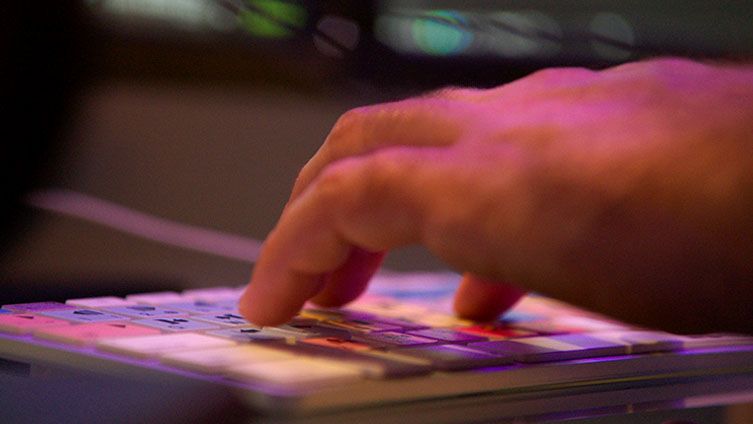

The Fine Line Between Ordinary and Exceptional
The Fine Line Between Ordinary and Exceptional
Editing at a high level requires a marriage between technical and the creative. The left brain and the right.
And like most crafts, it's the last 10% of skill acquisition that separates an average edit from a great one.
We'll teach you the first 90%—but most importantly we'll also teach you the last 10.
And like most crafts, it's the last 10% of skill acquisition that separates an average edit from a great one.
We'll teach you the first 90%—but most importantly we'll also teach you the last 10.
Choose your path to becoming a better editor.
Choose your path to becoming a better editor.
MOST POPULAR STARTING POINT
Get Editing Secrets
Get Editing Secrets
A fast, focused collection of our most powerful creative and technical tips
- 14 Step-by-Step Lessons
- 3+ Hours of Training
- 400 Cinematic Foley Effects
- Optimized Keyboard Shortcuts
- Project Templates
- Our Favorite FX Presets
- Easy to Complete in a Weekend
- 30-Day Money-Back Guarantee
- Lifetime Access
New Student Pricing for October
(Regularly $297)
BEST FOR SERIOUS CREATIVES
Get The Complete Art of Editing Curriculum
Get The Complete Art of Editing Curriculum
- 500+ Step-by-Step Lessons
- 100+ Hours of Training
- 20 Hands-On Practice Projects
- Footage, Music & Sound Libraries
- Editing Feedback & Guidance
- Versatile Editor’s Playbook
- The Editor’s Gear Guide
- The Career & Job Guide
- Color Grading Masterclass
- Editing Performance Maximizer
- Partner Discounts & Perks
- 30-Day Money-Back Guarantee
Not sure yet?
Most students start with Editing Secrets.
Most students start with Editing Secrets.
Details About The Complete Art of Editing Curriculum
Details About The Complete Art of Editing Curriculum
Explore everything inside the full curriculum for $6,499
UNIT 1
UNIT 1
Learn the Secrets of Creative Editing
Learn the Secrets of Creative Editing
school
36 Lessons • Beginner • Any Software
5 Hr Viewing • Est. Edit Time ~1 Week
This unit delves into the foundational aspects of creative editing, guiding students through essential skills related to video, sound, and workflow. Learners will then apply their skills in the hands-on workshop cutting scenes from a short film.
Browse Lessons
Lesson 1: Welcome to Secrets of Creative Editing 1:39
Lesson 2: The Roles and Challenges of the Creative Editor 12:05
Lesson 3: Key Elements of the Perfect Timeline 3:44
Lesson 4: Arranging Video and Audio Tracks 7:59
Lesson 5: Timeline Color Coding Strategies 5:58
Lesson 6: Final Timeline Tips and Advice 5:07
Lesson 7: Working with Different Audio Sources 7:00
Lesson 8: Building Conversational Structure 5:02
Lesson 9: Mastering the Split Edit 9:30
Lesson 10: Polishing Spoken Audio 7:18
Lesson 11: Cutting for Scene Objective and Character Focus 5:28
Lesson 12: Shaping the Performance 12:51
Lesson 13: Synchronous vs Asynchronous Sound 8:31
Lesson 14: Deconstructing Professional Sync Sound 5:31
Lesson 15: Motivating Drama with Sound 8:56
Lesson 16: Creating Humor and Simulating the Supernatural 5:50
Lesson 17: Revealing Plot Points with Sound 4:45
Lesson 18: Planning the Sound Strategy 7:40
Lesson 19: Cutting the Sound Layers - Part 1 7:04
Lesson 20: Cutting the Sound Layers - Part 2 14:38
Lesson 21: Cross Cutting for Pacing and Tension 8:05
Lesson 22: Reviewing the Edited Scene 3:48
Lesson 23: Project Overview 1:33
Lesson 24: Organizing & Reviewing the Footage 11:34
Lesson 25: Creating a Line Breakdown 18:04
Lesson 26: Building the Kitchen Table Conversation - Part 1 15:56
Lesson 27: Building the Kitchen Table Conversation - Part 2 9:29
Lesson 28: Refining the Kitchen Table Scene - Part 1 14:51
Lesson 29: Refining the Kitchen Table Scene - Part 2 16:53
Lesson 30: Building the Sad Bench Scene - Part 1 15:45
Lesson 31: Building the Sad Bench Scene - Part 2 7:14
Lesson 32: Bringing the Scenes to Life with Music & Sound - Part 1 12:13
Lesson 33: Bringing the Scenes to Life with Music & Sound - Part 2 8:36
Lesson 34: Bringing the Scenes to Life with Music & Sound - Part 3 14:27
Lesson 35: Reviewing Key Lessons Learned 1:15
Lesson 36: Your Next Learning Steps 1:50
UNIT 2
UNIT 2
Learn the Art of Dramatic Film Editing
Learn the Art of Dramatic Film Editing
school
44 Lessons • Intermediate • Any Software
14 Hr Viewing • Est. Edit Time ~6 Weeks
Focusing on the nuances of dramatic storytelling, this section guides students through the process of editing a complete feature-length film. With access to high-quality dailies and a curated music and sound library, learners will master the art of crafting compelling dramatic narratives.
Browse Lessons
Lesson 1: Welcome to The Art of Drama Editing 1:52
Lesson 2: Introduction to Drama Editing 2:59
Lesson 3: Filmmaking Essentials for Editors 23:03
Lesson 4: Deconstructing Facial Expressions & Body Language 17:21
Lesson 5: Understanding Film Story Structure 15:36
Lesson 6: Project Overview 2:11
Lesson 7: Downloading Your Files 2:32
Lesson 8: Importing the Footage, Music & Sound 5:38
Lesson 9: Feature Film Organization Techniques 5:52
Lesson 10: Setting Up a Feature Film Timeline 4:37
Lesson 11: Reviewing the Script & Watching the Film 4:27
Lesson 12: Film Production Realities 6:21
Lesson 13: Creating Feature Breakdowns & Selects 21:32
Lesson 14: Cutting the First Scene 36:40
Lesson 15: Cutting the Argument at the Hotel 16:26
Lesson 16: Cutting the Love Scene in the Treehouse 28:38
Lesson 17: Deconstructing the Dramatic Montage 11:02
Lesson 18: Editing Your Own Montage 21:31
Lesson 19: Flashbacks & Dream Sequences 16:29
Lesson 20: Interweaving Storylines with Cross-Cutting 33:18
Lesson 21: Smoothing Connections in a Cross-Cut Sequence – Part 1 21:31
Lesson 22: Smoothing Connections in a Cross-Cut Sequence – Part 2 26:12
Lesson 23: Using Sound to Simulate Thoughts & Memories 5:42
Lesson 24: Deconstructing a Thought Simulation Sequence 24:48
Lesson 25: Bringing a Scene to Life with Foley – Building the Cut 15:24
Lesson 26: Bringing a Scene to Life with Foley – Layering the Sound 36:54
Lesson 27: Cutting with Style & Imagination – Picture 24:19
Lesson 28: Cutting with Style & Imagination – Sound & Music 31:08
Lesson 29: The Mechanics of Scene Pacing & Timing 16:48
Lesson 30: Pacing a Cut Three Different Ways 26:13
Lesson 31: Assembling the Feature 6:45
Lesson 32: Basic Scoring Techniques 30:51
Lesson 33: Crafting Effective Film Transitions 11:35
Lesson 34: Smoothing Transitions Between Our Scenes 25:02
Lesson 35: The Audio Mixing Process 9:12
Lesson 36: Color Correction & Grading 39:40
Lesson 37: Outputting Your Film for Presentation & Delivery 4:18
Lesson 38: Reviewing Key Lessons Learned 2:15
Lesson 39: Next Steps 3:24
PRO: Sending Out Turnovers to VFX, Sound & Color 35:50
PRO: Conforming & QC’ing Turnovers in Your Timeline 25:42
Bonus: Visual Stylization Techniques & Effects 20:12
UNIT 3
UNIT 3
Learn the Art of Trailer & Promo Editing
Learn the Art of Trailer & Promo Editing
school
52 Lessons • Intermediate • Any Software
6 Hr Viewing • Est. Edit Time ~3 Weeks
Learn the unique craft of trailer editing with step-by-step training from professional trailer editors. This unit covers how to hook audiences instantly, build excitement, and create emotional impact.
Browse Lessons
Lesson 1: Welcome to The Art of Trailer Editing 2:58
Lesson 2: How this Course is Organized 2:00
Lesson 3: Main Types of Trailers & Promos 2:29
Lesson 4: Four Unique Challenges of Trailer Editing 7:22
Lesson 5: Key Trailer Editing Tools & Vocab 4:14
Lesson 6: Amateur vs Professional Trailers 5:15
Lesson 7: Research & Organization Workflows 9:05
Lesson 8: Positioning the Movie 4:05
Lesson 9: Telling the Story 6:21
Lesson 10: Arranging the Structure 8:28
Lesson 11: Choosing the Music 6:08
Lesson 12: How to Use Sound Design 8:59
Lesson 13: Laying the Foundation with Audio 18:02
Lesson 14: Creating the Big Trailer Moments 8:59
Lesson 15: Storytelling with Style 5:11
Lesson 16: Cutting Professional Montages 11:09
Lesson 17: Working with Graphics & Voiceover 5:47
Lesson 18: The Importance of Un-Resolution 1:56
Lesson 19: Storytelling & Character Development 7:55
Lesson 20: Creating Emotion in a Cut 11:40
Lesson 21: Essential Comedy Tools 4:05
Lesson 22: Crafting a Story with Jokes 6:24
Lesson 23: Style Tips for Comedy Editors 9:12
Lesson 24: The Power of the Music Stop 8:14
Lesson 25: Beat-Driven & Rhythmic Accents 13:08
Lesson 26: Building Intensity with Custom Hit Grids 15:10
Lesson 27: Creative Sound Design Techniques 5:40
Lesson 28: Essential Suspense & Horror Tools 10:38
Lesson 29: The Sound of Silence 7:25
Lesson 30: Creating Rhythmic Sound Motifs 13:44
Lesson 31: Project Overview 2:37
Lesson 32: Setting Up the Project 5:42
Lesson 33: Organizing the Project 2:45
Lesson 34: Creating the Paper Cut 4:15
Lesson 35: Building the Structure 9:27
Lesson 36: Filling in the Picture 8:26
Lesson 37: Sound Design 6:59
Lesson 38: Bringing It All Together 2:24
Lesson 39: Final Mixing & Tweaks 4:49
Lesson 40: Reviewing Key Lessons Learned 1:39
Lesson 41: Next Steps 1:40
Bonus: How to Cheat Character Dialogue 9:58
PRO: Editor Interview - Eric 14:36
PRO: Editor Interview - Ken 19:59
PRO: Editor Interview - Sean 19:46
PRO: Editor Interview - Aura 22:36
PRO: Editor Interview - Ron 12:34
PRO: Editor Interview - Jerry 6:44
UNIT 4
UNIT 4
Learn the Art of Music Editing
Learn the Art of Music Editing
school
71 Lessons • Advanced • Any Software
14 Hr Viewing • Est. Edit Time ~4 Weeks
Explore the pivotal role of music in editing. This section teaches students how to effectively select and edit music to enhance storytelling across all types of edits. Through hands-on projects, learners will understand the intricacies of syncing music with visual elements to evoke desired emotions.
Browse Lessons
Lesson 1: Welcome to The Art of Music Editing 1:13
Lesson 2: How This Course is Organized 1:40
Lesson 3: The 4 Main Functions of Music in Film 18:19
Lesson 4: Musical Styles, Genres and Meaning 14:05
Lesson 5: Creating Emotional Tones & States 23:43
Lesson 6: How to Find the Right Music 20:11
Lesson 7: How to Analyze & Prep a Music Cue 14:30
Lesson 8: How to Correctly Use Crossfades 12:33
Lesson 9: How to Place & Join Music Edits 14:00
Lesson 10: Spotting for Editors: Where Does the Music Go? 16:14
Lesson 11: Accenting Dramatic Moments with Music 14:21
Lesson 12: Cutting Loops & Repeating Elements 10:03
Lesson 13: Adding Variety to Your Music 19:20
Lesson 14: The Importance of Tones & Drones 11:16
Lesson 15: How to Use Tones & Drones With Music 10:55
Lesson 16: How to Start & Stop Music with Ringouts and Reverses 15:23
Lesson 17: Music Mixing & Level Guidelines 5:05
Lesson 18: Mixing with Keyframes & Rubber Banding 14:03
Lesson 19: Mixing with Edits & Crossfades 12:42
Lesson 20: Mixing with Live Automation Recording 6:55
Lesson 21: Mixing with Auto Ducking 8:40
Lesson 22: Mixing with EQ & Notching 10:43
Lesson 23: Cutting Music to Fit Any Length 2:38
Lesson 24: Cutting the 2:00 Version - Part 1 13:40
Lesson 25: Cutting the 2:00 Version - Part 2 15:12
Lesson 26: Cutting the 1:00 Version - Part 1 7:36
Lesson 27: Cutting the 1:00 Version - Part 2 10:35
Lesson 28: Cutting the :30 Version - Part 1 12:37
Lesson 29: Cutting the :30 Version - Part 2 19:15
Lesson 30: Cutting the :15 Version - Part 1 8:27
Lesson 31: Cutting the :15 Version - Part 2 9:49
Lesson 32: Cutting the :05 Version 6:55
Lesson 33: Scoring Project Overview 14:45
Lesson 34: Setting Up the Project 3:18
Lesson 35: Creating Your Music Roadmap with Spotting 15:08
Lesson 36: Gathering & Organizing Your Music 12:54
Lesson 37: Laying Out a Rough Music Pass - Part 1 9:20
Lesson 38: Laying Out a Rough Music Pass - Part 2 11:36
Lesson 39: Going Beyond the Rough Cut 4:33
Lesson 40: Scoring the Intro Sequence 21:36
Lesson 41: Scoring the City Sequence 3:27
Lesson 42: Scoring the Bar Scene - Part 1 10:38
Lesson 43: Scoring the Bar Scene - Part 2 19:37
Lesson 44: Scoring the Apartment Scene - Part 1 15:28
Lesson 45: Scoring the Apartment Scene - Part 2 13:53
Lesson 46: Scoring the Finale 15:33
Lesson 47: Creating the Final Mix 17:01
Lesson 48: Reviewing the Final Cut 15:21
Lesson 49: Reviewing Key Lessons Learned 1:43
Lesson 50: Next Steps 3:25
Lesson 51: PRO Edit Demo - Spotting 6:48
Lesson 52: PRO Edit Demo - Cutting Accents 23:25
Lesson 53: PRO Edit Demo - Cutting Loops 13:41
Lesson 54: PRO Edit Demo - Adding Variety 5:13
Lesson 55: PRO Edit Demo - Mixing 8:56
Lesson 56: PRO Edit Demo - Drones 8:59
Lesson 57: PRO Edit Demo - Editor vs Composer 6:41
Lesson 58: PRO Project Overview & Introduction to Stems 11:12
Lesson 59: PRO Setting Up & Organizing the Project 7:16
Lesson 60: PRO Scoring Duncan's Death Scene - Part 1 10:27
Lesson 61: PRO Scoring Duncan's Death Scene - Part 2 11:35
Lesson 62: PRO Scoring Duncan's Death Scene - Part 3 15:38
Lesson 63: PRO Scoring the Love Theme - Part 1 17:05
Lesson 64: PRO Scoring the Love Theme - Part 2 10:55
Lesson 65: PRO Scoring James' Tense Moment - Part 1 11:24
Lesson 66: PRO Scoring James' Tense Moment - Part 2 10:45
Lesson 67: PRO Scoring James' Tense Moment - Part 3 19:24
Lesson 68: PRO Scoring the Finale Sequence - Part 1 18:32
Lesson 69: PRO Scoring the Finale Sequence - Part 2 14:58
Lesson 70: PRO Scoring the Finale Sequence - Part 3 17:12
Lesson 71: PRO Reviewing the Final Cut 11:17
Bonus: How to Fix Bad Music Edits 19:32
UNIT 5
UNIT 5
Learn the Art of Action Editing
Learn the Art of Action Editing
school
37 Lessons • Intermediate • Any Software
9 Hr Viewing • Est. Edit Time ~4 Weeks
This section immerses students in the dynamic world of action editing, providing step-by-step training on cutting high-intensity scenes. With 37 lessons and access to professionally-shot fight scene dailies, learners will develop the skills to edit adrenaline-pumping sequences.
Browse Lessons
Lesson 1: Welcome to the Art of Action Editing 1:20
Lesson 2: Introduction to Action Editing 3:49
Lesson 3: The Project Overview 10:07
Lesson 4: Understanding the Learning Process 5:53
Lesson 5: The Psychology Behind Fight Scenes 3:15
Lesson 6: Character Development 6:21
Lesson 7: Fight Choreography 6:24
Lesson 8: Fight Cinematography 5:12
Lesson 9: Picture Editing Tips 8:54
Lesson 10: Sound Editing Tips 10:36
Lesson 11: Creating a Project & Importing Files 7:59
Lesson 12: Reviewing the Raw Footage 8:03
Lesson 13: Reviewing the Sound Effects & Music 5:52
Lesson 14: Previewing the Final Scene 2:16
Lesson 15: Meeting the Characters 2:28
Lesson 16: Analyzing the Master Shot 8:05
Lesson 17: Sub-clipping the Takes 10:38
Lesson 18: Organizing Your Bin 21:55
Lesson 19: Overview of the Rough Editing Process 5:22
Lesson 20: Blocking in the Scene 41:05
Lesson 21: Adding More Camera Angles 1:14:22
Lesson 22: Cleaning Up the Rough Cut 6:21
Lesson 23: Viewing the Completed Rough Cut 2:50
Lesson 24: Build Emotion With Reaction Shots 12:14
Lesson 25: Add Scope With Wide Shots 22:51
Lesson 26: Using Slow Motion & Speed Tricks 18:09
Lesson 27: The Sound Editing Process 2:00
Lesson 28: Adding Key Sound Effects 32:38
Lesson 29: Creating a Custom Music Bed 57:19
Lesson 30: Using Foley to Enhance Realism 52:15
Lesson 31: Adding Wild Lines 14:42
Lesson 32: Accenting Moments With Sound Design 43:02
Lesson 33: Fixing Problems & Polishing the Scene 23:23
Lesson 34: Performing a Quick Color Correction 8:21
Lesson 35: Adding a Matte 4:05
Lesson 36: Finalizing the Audio Mix 9:52
Lesson 37: Reviewing Key Lessons Learned 1:39
PRO: Advanced Music Editing Techniques 28:50
PRO: Simulating Camera Movement & Shakes 15:02
Bonus: Creating Action Accents 7:32
UNITS 6 + 7
UNITS 6 + 7
Learn the Art of VFX & Motion Graphics for Editors
Learn the Art of VFX & Motion Graphics for Editors
school
98 Lessons • Advanced • After Effects
28 Hr Viewing • Est. Work Time ~8 Weeks
This section teaches visual effects and graphics skills to make students well-rounded and versatile editors. Topics include compositing, rotoscoping, green screening, animated motion graphics, title sequences and all manner of visual enhancements to elevate cuts.
Browse Lessons
Lesson 1: Welcome to The Art of Visual Effects for Editors 0:54
Lesson 2: How This Course is Organized & Downloading Your Files 4:45
Lesson 3: Project Brief - Green Screens, Tracking & Monsters...Oh My! 5:36
Lesson 4: Prepping and Exporting Shots for VFX 26:34
Lesson 5: The Role of Color Correction in VFX 14:46
Lesson 6: VFX Shot 1: Simple Tracking & Compositing a TV Screen 20:04
Lesson 7: VFX Shot 2: Advanced Tracking Using Mocha 22:01
Lesson 8: Advanced Tracking Using 3D Tracker Camera 13:08
Lesson 9: How to Fix Common Tracking Problems 16:07
Lesson 10: Compositing & Rotoscoping Techniques 18:52
Lesson 11: VFX Shot 3: Planar Tracking & Solving for a Moving Phone Screen 22:38
Lesson 12: Building a Fake Phone Interface 23:04
Lesson 13: Animating a Fake Phone Interface 11:08
Lesson 14: Keying Out the Phone Screen 23:19
Lesson 15: VFX Shot 4: Building a Scene by Compositing Multiple Shots Together 19:00
Lesson 16: Color Correction, Sky Replacement & Lighting Fixes 19:16
Lesson 17: Fine-Tuning a Composite & Fixing Edges 19:56
Lesson 18: Exporting Alpha Mattes for Color Correction & Grading 8:31
Lesson 19: VFX Shot 5: The Best Way to Stabilize Shaky Footage 8:00
Lesson 20: Motion Tracking an Object for Logo Replacement 12:21
Lesson 21: Designing & Blending a Replacement Logo Into the Footage 25:14
Lesson 22: VFX Shot 6: 3D Tracking to Add Objects 13:16
Lesson 23: Compositing the Objects into Our Shot 18:49
Lesson 24: VFX Shot 7: Preparing the Alien Shot with Tracking & Rotoscoping 23:27
Lesson 25: VFX Shot 8: Creating Glowing Sci-Fi Eyes 16:14
Lesson 26: VFX Shot 9: Complex Green Screening, Mattes & Spill Suppression 28:08
Lesson 27: Stylistic Time Remapping Techniques 9:29
Lesson 28: Designing a Blurred, Glitchy Teleport Effect 12:15
Lesson 29: Adding Visual Details to the Alien in Post 22:59
Lesson 30: Client Revisions: Final VFX Tweaks & Clean-Up 18:31
Lesson 31: Rendering & Delivering the Final VFX Shots 5:35
Lesson 32: Project Brief: Building a Cinematic Title Sequence 3:49
Lesson 33: Prepping Footage in Editing Software for Export 7:58
Lesson 34: Importing Keys Footage Into AE & Creating a Looping Video 13:45
Lesson 35: Syncing the Footage with Time Remapping 11:04
Lesson 36: Keying the Keys: Rotobrush vs Extract Effect 19:24
Lesson 37: Fine-Tuning & Troubleshooting the Mask 20:57
Lesson 38: VFX Shot 1: Building the Falling Keys Composition 18:18
Lesson 39: Animating the Keys + Adding Dust & Light Rays 18:36
Lesson 40: VFX Shot 2: Building the Spinning Keys Composition 12:57
Lesson 41: Building Effects, Vignetting & Tilt Shift 14:22
Lesson 42: VFX Shot 3: Building the Array of Keys Composition 19:04
Lesson 43: Adding Smoke & Depth of Field 15:22
Lesson 44: VFX Shot 4: Building the Sparks & Particles Composition 11:25
Lesson 45: Adding Flares, Blurs & Slow Motion 23:49
Lesson 46: VFX Shot 5: Building the Main Title Card 17:28
Lesson 47: Experimenting with Credit Text Styles & Animations 19:46
Lesson 48: Client Revisions: Cleaning Up the Glue 13:36
Lesson 49: Next Steps 1:34
Lesson 1: Welcome to The Art of Motion Graphics for Editors 0:59
Lesson 2: How This Course is Organized & Downloading Your Files 4:45
Lesson 3: Project Brief: Commercial & Promo Graphics 2:42
Lesson 4: Graphic 1: 3D Tracked Text 10:58
Lesson 5: Adding Realistic Water Reflections 20:38
Lesson 6: Graphic 2: 2D Tracked Text 20:19
Lesson 7: Graphic 3: Building an Animated Clock 0:48
Lesson 8: Adding Animation & Realistic Shadows 6:40
Lesson 9: Graphic 4: Stabilization & Building a Clean Plate 16:17
Lesson 10: Rotoscoping Our Hero & Adding the Text 17:50
Lesson 11: Graphic 5: Text Tracking with Mocha 19:23
Lesson 12: Text Masking with Mocha 11:47
Lesson 13: Graphic 6: Three Advanced Tracking Methods 15:02
Lesson 14: Design, Rotoscoping & Expressions 14:52
Lesson 15: Lens Flares, Sliders & Tracking Fixes 16:28
Lesson 16: Project Brief: Corporate & Brand Graphics 4:09
Lesson 17: Graphic 1: Animating a Logo 15:20
Lesson 18: Designing the Logo Movement 18:43
Lesson 19: Animating the Tagline 8:41
Lesson 20: Graphic 2: Animated Lower Thirds 15:43
Lesson 21: Adding Style & Creative Accents 18:14
Lesson 22: Creating After Effects Templates & MOGRTS 19:14
Lesson 23: Graphic 3: Building a Map Animation 6:06
Lesson 24: Adding Locator Graphics to the Map 11:02
Lesson 25: Moving a 3D Camera Around the Map 1:06
Lesson 26: Graphic 4: Creating an Animated Line Chart 11:54
Lesson 27: Expressions & Automation of the Line Chart 21:19
Lesson 28: 3D Animation & Lighting the Line Chart 4:53
Lesson 29: Graphic 5: Creating an Animated Bar Graph 20:11
Lesson 30: Animating Accurate Data Labels with Expressions 22:01
Lesson 31: Graphic 6: Building a 3D Website Fly-Around 17:02
Lesson 32: Adding Real & Simulated Depth of Field 6:32
Lesson 33: Adding Stylish Animated Embellishments 13:06
Lesson 34: Bonus Graphic: Adding Further Depth & Dimension to the Website 20:42
Lesson 35: Simulating Handheld Movement & 3D Lighting 13:04
Lesson 36: Project Brief: Bringing Still Images to Life 3:05
Lesson 37: Graphic 1: Building a Realistic Earth Zoom 1:46
Lesson 38: Graphic 1 - Building a Realistic Earth Zoom 25:46
Lesson 39: Animating the Earth Zoom 24:00
Lesson 40: Adding Details Like Borders, DoF & Animated Water 6:29
Lesson 41: Graphic 2: Creating 2.5D Animated Images 17:56
Lesson 42: Adding Visual Details Like Fog & Water Spray 10:14
Lesson 43: Simple Character Animation with the Puppet Tools 12:02
Lesson 44: Animated Depth of Field & Camera Movement 8:37
Lesson 45: Graphic 3: Intro to 3D Camera Projection Mapping 15:13
Lesson 46: Setting Up the 3D Projection Mapping 14:02
Lesson 47: Adding Objects & Dust to the 3D Scene 15:07
Lesson 48: Faking Volumetric Light and Depth of Field in Our 3D Scene 16:02
Lesson 49: Next Steps 1:34
SOFTWARE SKILLS
SOFTWARE SKILLS

Software Training to Support Creative Editing
Software Training to Support Creative Editing
Learn from scratch or improve existing skills
Comprehensive beginner lessons, enabling new editors to start quickly and seasoned editors to enhance their speed and refine their skills. Getting fast with your software saves you time and allows you to focus on the fun part. Being CREATIVE.
This is optional training. You can also use your choice of editing software to complete the core curriculum.
This is optional training. You can also use your choice of editing software to complete the core curriculum.
Premiere Pro QuickStart
school
55 Lessons • Beginner
6 Hr Viewing • Est. Edit Time ~1 Week
Lesson 01: Welcome to Premiere Pro Editing Quickstart
Lesson 02: The Basics of Video Editing
Lesson 03: Downloading Your Footage, Audio & Exercise Files
Lesson 04: Setting Up Your Interface & Workspaces
Lesson 05: Setting General Preferences
Lesson 06: Setting Advanced Preferences
Lesson 07: Starting a New Project
Lesson 08: Importing Media into Premiere
Lesson 09: Creating a New Sequence
Lesson 10: Mapping Keyboard Shortcuts
Lesson 11: Basic Selection & Manipulation Tools
Lesson 12: Clip Speed & Rate Stretching
Lesson 13: Working with Trims
Lesson 14: Delete vs. Ripple Delete
Lesson 15: Advanced Rippling Techniques
Lesson 16: Three Point Editing vs. Timeline Editing vs. Pancake Editing
Lesson 17: How to Work with Nests
Lesson 18: Adding Basic Video Transitions
Lesson 19: Creating & Modifying Markers
Lesson 20: Understanding Color Labels in the Bins vs. the Timeline
Lesson 21: Bringing Audio Into Your Timeline
Lesson 22: Adjusting Audio & Creating Keyframes
Lesson 23: Using the Essential Sound Tool & Tagging
Lesson 24: Trying the Music Remix Tool
Lesson 25: Working With the Enhance Speech Tool
Lesson 26: The Three Types of Audio Transitions
Lesson 27: Applying Audio Effects
Lesson 28: Importing the Promo Assets
Lesson 29: Creating Selects & Stringouts
Lesson 30: Cutting from Your Stringout
Lesson 31: Basic Music Editing
Lesson 32: Sound Design 101
Lesson 33: Tips for Making Changes to Your Cut
Lesson 34: Using the Text Tool
Lesson 35: Adding Shape Graphics to Your Text
Lesson 36: Adding Basic Video Effects
Lesson 37: Animating Video Effects with Keyframes
Lesson 38: Speed Adjustments & Time Remapping
Lesson 39: Stabilizing Shaky Footage with the Warp Stabilizer
Lesson 40: Working With Images on Your Timeline
Lesson 41: Color Correction 101
Lesson 42: Choosing the Export Settings
Lesson 43: Best Practices for Versions & Filenames
Lesson 44: Next Steps
Lesson 45: Troubleshooting Tips & Tricks
Lesson 46: The Power of the Match Frame Tool
Lesson 47: How to Edit Faster Using the Alt/Option Key
Lesson 48: Dynamic Linking with After Effects
Lesson 49: Working with PSD Files from Photoshop
Lesson 50: Editing with Mono vs. Stereo
Lesson 51: Track Patching & Advanced Nesting Tips
Lesson 52: How to Quickly Rebuild a Lost Project
Lesson 53: Transcripts & Text-Based Editing
Lesson 54: Creating Captions for Your Videos
Lesson 55: Using Productions in Premiere Pro
DaVinci Resolve QuickStart
school
41 Lessons • Beginner
8 Hr Viewing • Est. Edit Time ~1 Week
Lesson 01: Welcome to DaVinci Resolve Quickstart
Lesson 02: The Basics of Video Editing
Lesson 03: Downloading Your Footage, Audio & Exercise Files
Lesson 04: Setting Up & Touring the Interface
Lesson 05: Importing & Organizing Media
Lesson 06: Understanding the Timeline Tools
Lesson 07: Working with Video & Audio on the Timeline
Lesson 08: The Three-Point Editing Technique
Lesson 09: Basic Music Editing
Lesson 10: Working with Audio & Sound Effects
Lesson 11: Adding Text & Graphics to an Edit
Lesson 12: Exporting a Simple Render of Your Cut
Lesson 13: Using Markers in the Timeline
Lesson 14: Creating & Managing Versions of Your Edits
Lesson 15: Using the Trim Edit Mode & Replace Edit Tool
Lesson 16: Adding Video Transitions
Lesson 17: Working with Video Effects
Lesson 18: Stabilizing Shaky Footage
Lesson 19: Working with Audio Effects & Filters
Lesson 20: Keyframing Motion & Effects
Lesson 21: Clip Speed & Time Remapping
Lesson 22: Compositing Tips & Tricks
Lesson 23: Introduction to Color Grading & Scopes
Lesson 24: The Basics of Using Nodes
Lesson 25: Making Primary Color Adjustments
Lesson 26: Making Secondary Color Adjustments
Lesson 27: How to Copy Grades Between Clips
Lesson 28: Basic Audio Mixing in Fairlight
Lesson 29: Advanced Exporting Techniques
Lesson 30: Compound Clips & Adjustment Clips
Lesson 31: Using the HSL Qualifier in the Color Page
Lesson 32: Media & Project Management
Lesson 33: Introduction to Graphics in Fusion
Lesson 34: Working Faster with the Cut Page
Lesson 35: Editing More Efficiently with Hotkeys
Lesson 36: Your Next Steps
Lesson 37: AI Transcriptions & Text-Based Editing
Lesson 38: Creating Captions & Subtitles
Lesson 39: AI Music Stem Remixing
Lesson 40: AI Voice Isolation & Dialogue Leveling
Lesson 41: Cloud-Based Project Management

After Effects Essentials
school
68 Lessons • Beginner
13 Hr Viewing • Est. Work Time ~3 Weeks
Lesson 01: Welcome to After Effects Quickstart
Lesson 02: How This Course Works + Your Downloads
Lesson 03: Launching After Effects
Lesson 04: Setting Up Preferences
Lesson 05: Tour of the Interface
Lesson 06: Creating a Template Project
Lesson 07: Importing Different Types of Media
Lesson 08: Plug-ins, Scripts & Third-Party Tools
Lesson 09: Advanced Tips, Preferences & Keyboard Shortcuts
Lesson 10: Basics of Working with Comps
Lesson 11: AE Comps vs Editing Timelines
Lesson 12: Working with Pre-Comps
Lesson 13: How to Organize Your Comps
Lesson 14: Tips & Tricks for Faster Playback
Lesson 15: Creating Different Types of Layers
Lesson 16: Text Layers
Lesson 17: Solids
Lesson 18: Shape Layers
Lesson 19: Adjustment Layers
Lesson 20: Null Objects
Lesson 21: Moving, Trimming & Manipulating Layers
Lesson 22: Creating & Modifying Markers
Lesson 23: Using Blend Modes
Lesson 24: Masking & Rotoscoping Concepts
Lesson 25: Mask Settings & Refinements
Lesson 26: How to Use Track Mattes
Lesson 27: The Power of Mocha
Lesson 28: Creating & Modifying Keyframes
Lesson 29: Spatial Interpolation
Lesson 30: The Graph Editor - Part 1
Lesson 31: The Graph Editor - Part 2
Lesson 32: Flexible Roving Keyframes
Lesson 33: Time Remapping Footage Using Keyframes
Lesson 34: Shape Layer Properties In-Depth
Lesson 35: Using Shape Layer Effects & Animations
Lesson 36: Grouping & Blending Shapes Together
Lesson 37: Text Layer Properties In-Depth
Lesson 38: Animating Text with the Range Finder - Basic
Lesson 39: Animating Text with the Range Finder - Advanced
Lesson 40: Converting Text to Shapes for Cool Effects
Lesson 41: Understanding Parent/Child Relationships
Lesson 42: Animating with Nulls & Parenting
Lesson 43: Basics of Working with Expressions
Lesson 44: Building a Simple Expression with Slider Control
Lesson 45: Looping Animations with Expressions
Lesson 46: Animating Numbers with Sliders & Expressions
Lesson 47: Animating Progress Bars & Graphs with Expressions
Lesson 48: The Puppet Pin Tool
Lesson 49: The Rotobrush Tool
Lesson 50: AI + Content Aware Fill
Lesson 51: Motion Tracking: An Editor's Dream
I recently secured a position as an Editor at a trailer house in London, which also has a shop in New York and a new offering that just launched in L.A.
I wanted to thank you for the excellent course materials. They taught me so much about the art form that I love so dearly and helped me get this job.
Lewis Rose
FEP STUDENT
ALSO INCLUDED IN THE COMPLETE ART OF EDITING CURRICULUM
Advanced Tools & Resources
Advanced Tools & Resources
The difference between learning and mastering — advanced coaching, insider tools, and professional resources


Creative Coaching & Editing Feedback
Creative Coaching & Editing Feedback
Previously only offered in our top-tier Ultimate packages — a $12,798 value (now included)
Get 1-on-1 professional feedback and guidance from Chris and the team — the same process we’ve used to help working editors land jobs, tighten reels, and finish real-world client projects.
It’s the kind of support that helps you break through plateaus, refine your creative instincts, and start thinking like a professional.
- 20 personalized edit reviews via Frame.io
- Direct email access to our editor team
- Creative guidance on your projects
- Fast technical help with software and workflow issues
It’s the kind of support that helps you break through plateaus, refine your creative instincts, and start thinking like a professional.

The Editor's Career & Freelance Job Guide
The Editor's Career & Freelance Job Guide
$499 (Included)
To help you find work, advance your career and get paid well for doing what you love.
- 34 Career Strategy Videos
- Editor's Rate Calculators
- Sample Resumes
- Career Success Cheat Sheets
Questions Answered
Question 1: When Are My Skills Good Enough to Start Applying for Jobs?
Question 2: Do I Need Film School or a Degree to Get a Job as an Editor?
Question 3: What Software Programs Do I Need to Know?
Question 4: Do I Also Need to Learn Graphics, Visual Effects, and 3D?
Question 5: What Types of Editing Jobs Are Out There to Choose From?
Question 6: How Do I Transition Into Editing if I’m Currently in a Related Field?
Question 7: What’s the Career Progression for an Editor?
Question 8: What Is the Average Editor's Hourly/Yearly Salary?
Question 9: Are There Differences in Pay for Freelance Jobs vs. Full-Time Jobs?
Question 10: What If I Want to Be an Editor but Currently Have a Day Job?
Question 11: What Are the Job Prospects for Older Editors?
Question 12: Is AI Going to Take Away Editing Jobs?
Question 13: What Locations Outside of Hollywood Are Good for Editing Jobs?
Question 14: Is It Possible to Get Remote Editing Work?
Question 15: Can I Get a US Work Visa if I Live in Another Country?
Question 16: How Can I Tailor My Resume for Different Types of Editing Jobs?
Question 17: How Much Control Do Editors Have Over Their Work?
Question 18: What's a Day in the Life of a Professional Editor Look Like?
Question 19: How Do I Find and Apply to Editing Jobs?
Question 20: What Should I Put on My Editing Reel?
Question 21: How Should I Display My Reel?
Question 22: How Does the Editors Guild (IATSE Local 700) Work?
Question 23: What Equipment Do I Need to Edit Professionally?
Question 24: Do I Need to Have My Own SFX and Music Libraries for Clients?
Question 25: What Stock Libraries Should I Subscribe To?
Question 26: Should I Get Third-Party Plugins for My Software?
Question 27: Where Do I Outsource My VFX, GFX, or Color if I'm Only Editing?
Question 28: What’s the Best Way to Back Up Client Projects to Avoid Data Loss?
Question 29: How Do I Deal With Clients and Employers at a Job?
Question 30: How Do I Communicate Timelines and Expectations to Clients?
Question 31: What’s the Best Way to Present My Edits and Get Feedback?
Question 32: How Do I Deal With Notes & Revisions I Disagree With?
Question 33: How Do I Handle Projects Where Clients Want Unlimited Revisions?
Question 34: How Do I Get Promoted or Get a Raise at My Editing Job?
The Versatile Editor’s Playbook
The Versatile Editor’s Playbook
$249 (Included)
Learn how to adapt your new editing skills to any genre, format, or client need — from wedding films to YouTube content to real estate videos.
Many types of edits use the same core skills, but with subtle differences. This playbook is designed to translate your knowledge with 15 written and illustrated guides.
Topics Covered
Short Films
Online Ads
Wedding Videos
Travel Videos
VLOGs
Real Estate Videos
Educational Content
Reality TV
Crowdfunding Videos
Music Videos
Documentaries
YouTube Videos
Social Media Content
Corporate Videos
Highlight Reels

The Editor's Gear Guide
The Editor's Gear Guide
$199 (Included)
For editors looking to upgrade their gear—saving you hours of research and expensive mistakes when choosing the right setup.
- The Ultimate Editing Gear List
- Guide: Editing Workstations 101
- Guide: Macs vs PCs
- Guide: Desktop vs Workstations
- Guide: Peripherals & Extras

The Editing Performance Maximizer
The Editing Performance Maximizer
$149 (Included)
For editors looking to get more out of their current gear—how to optimize your footage and timelines for fast editing, even without a powerful workstation. Works with any editing software.
- Introduction to proxy workflows
- Creating proxies for Premiere Pro
- Creating proxies & optimized media for DaVinci Resolve
- Creating proxy media compatible with any editing software

Creating Color Looks & Grades
Creating Color Looks & Grades
$297 (Included)
This focused 3-hour training covers the fundamentals of color grading in DaVinci Resolve. You'll learn how to analyze professional looks, build clean node structures, and apply common grades used in film and television.
- Analyzing Hollywood Looks
- Setting Up Proper Node Structure
- Apply Styles Like Teal & Orange, Bleach Bypass, and More
- Includes Recorded Q&A with Students

Partner Discounts & Perks
Partner Discounts & Perks
$5,000+ in savings
As a student, you’ll gain access to special offers from top brands like Boris FX, Kessler Crane, Boom Library, Pro Sound Effects, and many more.
Some of the Discounts You’ll Receive:
Some of the Discounts You’ll Receive:
- Editing Plugins – Save up to $1000 on Boris FX & Film Impact products.
- Multi-Language Subtitles
- Professional Sound Effects & Music – Enjoy up to 50% off from Boom Library, Audiio, SoundDogs & other major libraries.
- Hardware & Accessories – Big discounts on Glidecam, Kessler Crane, and more.

Multi-Language Subtitles
Multi-Language Subtitles
Included on all video lessons
Designed to support various backgrounds, learning styles and hearing impairments. Available in six major languages:
- Arabic
- English
- French
- German
- Portuguese
- Spanish

These training modules are SO AWESOME!!!!!
I have been self teaching myself for a while (4+ yrs) and the amount of information I have absorbed through this course is ideas, approaches and techniques I know I would never have figured out on my own...
In my stage of editing the chances of me of getting this level of insight from accomplished editors are zero...
In my opinion this has to be the best editing instructional courses I’ve had the pleasure to study.
James Williams
FEP STUDENT
All of These Advanced Resources Are Included in Your Enrollment
All of These Advanced Resources Are Included in Your Enrollment
The core curriculum is your foundation — these additions are your edge.
Each is designed to accelerate your learning, sharpen your creative instincts, and support you every step of the way.
Together, these are worth over $14,000 — but they’re all included at no extra cost.
Each is designed to accelerate your learning, sharpen your creative instincts, and support you every step of the way.
Together, these are worth over $14,000 — but they’re all included at no extra cost.
| Bonus | Value |
|---|---|
| Creative Coaching & Feedback Access | $12,798 |
| The Versatile Editor’s Playbook | $249 |
| The Editor’s Gear Guide | $199 |
| The Editor's Career & Freelance Job Guide | $499 |
| Creating Color Looks & Grades | $297 |
| The Editing Performance Maximizer | $149 |
| Total Bonus Value | $14,191 |
Creative Coaching & Feedback Access
Get personal guidance and hands-on feedback from experienced editors. Submit your work and get advice on how to improve it in real-time.
$12,798 Value
The Versatile Editor’s Playbook
A practical guide for tackling any type of edit — from trailers and commercials to scenes and social content.
$249 Value
The Editor’s Gear Guide
Our recommendations for the best editing hardware and software — whether you’re on a budget or building a powerhouse rig.
$199 Value
The Editor's Career & Freelance Job Guide
Break into the industry with this actionable guide for getting hired, finding clients, and building your editing career.
$499 Value
Creating Color Looks & Grades
A 3-hour training course that teaches a proper workflow for building creative color grades using DaVinci Resolve.
$297 Value
The Editing Performance Maximizer
Optimize your workflow, speed, and focus with these pro strategies for getting more done — without burning out.
$149 Value
Total Bonus Value: $14,191
FAQs
FAQs
Editing Secrets is a quick, 14-lesson course with some of our most powerful creative and technical tips. Designed to give you a feel for our training and get you started for a low cost. The Complete Art of Editing Curriculum is a 500-lesson comprehensive training program with hands-on projects and cut reviews/feedback — designed for serious editors who want to master every part of their craft.
The curriculum is designed for editors of all levels. All of our training includes techniques that can take you from the very basics of editing (learning software) all the way through advanced concepts.
We focus almost 100% on creative editing — the most important component and a side of teaching other training barely touches on. You can begin applying the techniques you learn immediately to your own work and see a large difference in the level of quality.
Yes, all the lessons in each unit are video-based training, so you can take it from anywhere in the world.
You’ll get instant access to everything and can go through the training on any device — desktop, laptop, tablet or even phone.
For most courses, you can follow along with ANY editing software.
These are creative techniques like how to cut a fight scene, how to edit a joke to feel funnier, how to build suspense. These techniques don't change from one editing program to another, so use any software you like!
Two exceptions:
1) If you are taking a QuickStart course to learn specific software, then you'll obviously need to use the software taught in that course.
2) The Art of VFX & Motion Graphics for Editors requires the use of After Effects. Included with the curriculum is After Effects Essentials, which will teach you that program if you are new to it.
Yes, you’ll have lifetime access to the training and included assets. You can work on the lessons at your own pace, as quickly or as slowly as you like. If you’ll be out of town, on vacation, or just get swamped for a few days, the training will still be here for you when you’re ready.
We stand by this curriculum with a 30-day guarantee.
If you don’t feel this is the most comprehensive and practical editing training you’ve ever received, email us at support@filmeditingpro.com. We’ll either work with you one-on-one to help you succeed — or provide a full refund.
No fine print. No hoops to jump through. Just a commitment to results.
Help Every Step of the Way
Help Every Step of the Way
Fast & friendly support for your creative and technical questions

Got a creative question?
Email our Editor Support Team and one of our pros will offer you some advice to keep you moving forward.
editors@filmeditingpro.com
editors@filmeditingpro.com
Got a technical question?
Email our Tech Support Team with any problems you might have with your account or the website. We’ll respond quickly and fix your problem.
support@filmeditingpro.com
support@filmeditingpro.com
Choose your path to becoming a better editor.
Choose your path to becoming a better editor.
MOST POPULAR STARTING POINT
Get Editing Secrets
Get Editing Secrets
A fast, focused collection of our most powerful creative and technical tips
- 14 Step-by-Step Lessons
- 3+ Hours of Training
- 400 Cinematic Foley Effects
- Optimized Keyboard Shortcuts
- Project Templates
- Our Favorite FX Presets
- Easy to Complete in a Weekend
- 30-Day Money-Back Guarantee
- Lifetime Access
New Student Pricing for October
(Regularly $297)
BEST FOR SERIOUS CREATIVES
Get The Complete Art of Editing Curriculum
Get The Complete Art of Editing Curriculum
- 500+ Step-by-Step Lessons
- 100+ Hours of Training
- 20 Hands-On Practice Projects
- Footage, Music & Sound Libraries
- Editing Feedback & Guidance
- Versatile Editor’s Playbook
- The Editor’s Gear Guide
- The Career & Job Guide
- Color Grading Masterclass
- Editing Performance Maximizer
- Partner Discounts & Perks
- 30-Day Money-Back Guarantee
Not sure yet?
Most students start with Editing Secrets.
Most students start with Editing Secrets.